Understanding how to get the most out of your software will help you save money, and get jobs done faster. There are a lot of features in FieldGenius, and some real time savers can be lost in the shuffle. In this article we go over several different features that all allow you to get your work done faster.
Survey plans are not always laid out for the field crew. Although point numbering and ordering can make sense on a computer, they do not always make sense on the ground out in the field. Finding the most efficient path can sometimes be more difficult than it needs to be. With the Stake nearest functionality, you can use the staking method to select the nearest point to you by distance. This means that with the stake nearest functionality you can get the quickest path through your stake list. And all you need to do to enable this option is select it on and off.
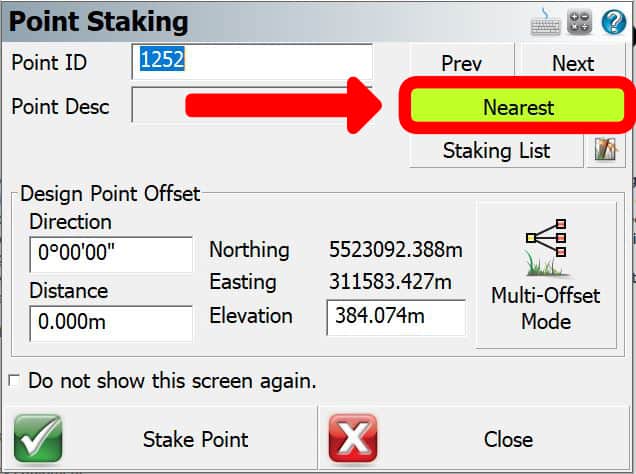
Stake nearest is not always the best way to stake through your points. It may not be in the order you need to perform the staking. This is where the staking lists come into play. With staking lists, you can create a list of points to stake through. This means you can create custom staking lists, for yourself or your crews. With staking lists, you can sort the points, by point number, ID, area, and more. And once your list is created, you can use the stake nearest to sort those points into the shortest path as well. Check out this video on the subject.
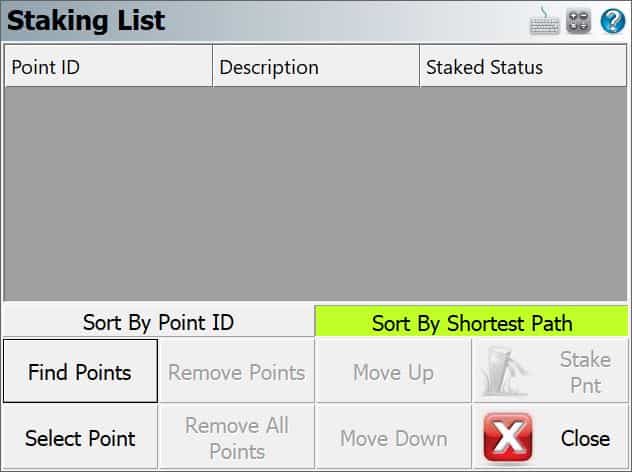
There are a lot of different staking options in FieldGenius. These options will help you organize your points, and get the most out of FieldGenius. With the staking options in FieldGenius, you can add prefixes, suffixes, and a set additive number to help you sort your points. So if you have multiple different point types you want to stake, you can use these functions to make it easier when you get back to the office find the points you are looking for. If you want to learn more check out our comprehensive Staking Cheat Sheet
By far one of the best and most underutilized features in FieldGenius is the group codes setup. With Group Codes you can digitize faster than ever before. Group Codes takes advantage of the great description and point information in FieldGenius and supercharges it.
There are several different options within Group Codes to make you faster. If you are looking to speed up entering your points, you can use Group Codes to display the most common point descriptions you use, allowing you to quickly select the option you need.
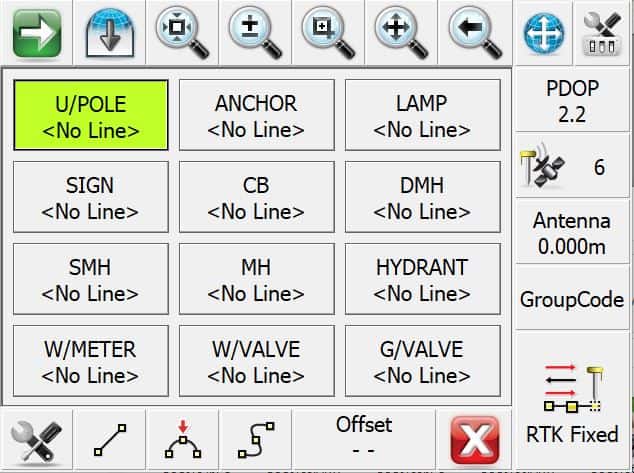
Group Codes also allow you to set patterns into your codes. This means with a little bit of planning; you can digitize an object very quickly while only having to press the RTK fixed button. For instance, for when surveying in a road with three components, you may now walk up and down each feature one at a time. Instead with the Group Code functions, you can walk cross-sections of the road, making it safer for yourself, and use the group codes to automatically do your line-work for you. With Group Codes you can keep your eyes on traffic, all while getting your project done faster. And with the tolerance settings discussed in the next section, you can make it even faster. For more on Group-Codes check out our videos on the getting the most out of this feature.
Using Group Codes: Easy Code Group Codes
The Android and Windows versions of microsurvey fieldgenius share core functionality, but each platform handles menus, file management, and layout tools differently. The Android version focuses on touch-friendly navigation and faster access to common functions, while Windows offers more robust file handling and supports a wider range of external hardware.
Android offers quicker access to commonly used staking and coding features due to simplified interface design. Windows supports more complex data management workflows, including importing and exporting large project files. Android provides smoother interaction on handheld devices in the field, while Windows works best when paired with rugged tablets or laptops for detailed review and editing.
To work efficiently on RTK tasks, surveyors should take advantage of FieldGenius shortcuts, automated point-recording tools, and properly configured stake workflows. Practical ways to maximize efficiency include:
Many users focus on staking and coding tools but overlook key settings that impact speed and accuracy. Settings commonly overlooked include:
By taking a moment to verify these settings before starting a project, surveyors can minimize avoidable errors and keep FieldGenius running smoothly throughout the job.
One of the settings menus that are often forgotten, but can really speed up your work flow is your tolerance settings. With tolerance settings you can set a number of parameters to make the recording of your shot faster, or make sure your crews aren’t skipping any steps.
The most obvious feature of the tolerance settings, as the name suggests, allow you to set the parameters under which you can record a GNSS point. This includes the minimum number of satellites, PDOP, solution status, correction age and standard deviations. By properly setting your tolerance settings, you can avoid costly mistakes with shots that our outside of your needs.
The other part of the tolerance menu is the most often forgotten part, but will speed up your work the most. At the bottom of the tolerance menu, under the Actions heading, you can check several boxes to make you way faster in the field.
Tolerance override allows you to do exactly what it sounds like. When recording a position, it will ignore your tolerance settings and allow you to record your point. This is especially useful when use the auto-record function, and you do not want to be stopped by your tablet noting an out of tolerance shot.
The second option, the Auto Skip Meas Stats, will skip all measurement statistics when recording a position. If you are confident in the performance of your receiver or do not care about the tolerance statistics, as you have set the tolerance limits to within your satisfaction, this option will skip the shot information screen, and proceed right to the storage screen.
The final option is the Auto Store Meas override. Much like the Auto Skip Measurement Statistics from above, this will skip the final screen when storing a point. This is particularly useful when using group codes, or do not need to record descriptions with your points. It may only save 10-15 seconds on every point, but over the course of a day, that quickly adds up.
Want to get started on FieldGenius? Request a quote today: https://rtkgpssurveyequipment.com/product/microsurvey-fieldgenius-10-standard/
Bench Mark Equipment & Supplies is your team to trust with all your surveying equipment. We have been providing high-quality surveying equipment to land surveyors, engineers, construction, airborne and resource professionals since 2002. This helps establish ourselves as the go-to team in Calgary, Canada, and the USA. Plus, we provide a wide selection of equipment, including global navigation satellite systems, RTK GPS equipment, GNSS receivers, and more. We strive to provide the highest level of customer care and service for everyone. To speak to one of our team today, call us at +1 (888) 286-3204 or email us at [email protected]